
Expert Topic for experienced builders.
With the I2S audio module enabled, the Bottango firmware can read audio files from an SD card and play them through an I2S DAC. When an audio keyframe plays in an animation, the hardware driver plays the matching audio file and keeps playback synchronized with the animation.
This works during live control from the desktop app and during exported animation playback.
The Bottango Solar control board contains all the required hardware (ESP32, I2S DAC and small amp) to use this firmware feature. You can also implement the functionality yourself in your own custom build with the following requirements:
Only ESP32-based microcontrollers are currently supported because the firmware uses I2S peripherals and APIs specific to the ESP32.
An I2S DAC normally provides a line-level audio output. You can connect that output to powered speakers or to an external amplifier and speakers. If you want to use passive speakers, you will also need an amplifier and an appropriate power supply for it.
Connect the DAC to the ESP32 according to the requirements of your chosen hardware. Set the I2S pin assignments in BottangoArduinoConfig.h, along with the pin assignments required by your SD card module. See the Configuration File guide for more information about module pins.
In BottangoArduinoModules.h, enable AUDIO_SD_I2S:
#define AUDIO_SD_I2SUse AUDIO_SD_I2S instead of AUDIO_TRIGGER_EVENT. The trigger event module tells your own callback or external hardware that audio should play, while the I2S module reads and plays the audio file directly from the SD card.
The SD card requirement is included when you enable AUDIO_SD_I2S. You do not need to also enable USE_SD_CARD_COMMAND_STREAM unless you want to read exported animation data from the same SD card.
After enabling the module and configuring your pins, save your changes, then compile and reupload the firmware.
Import your audio or video file into your Bottango project.
Add the imported file to an animation. Audio plays on the hardware only when an audio keyframe in the animation tells it to play.
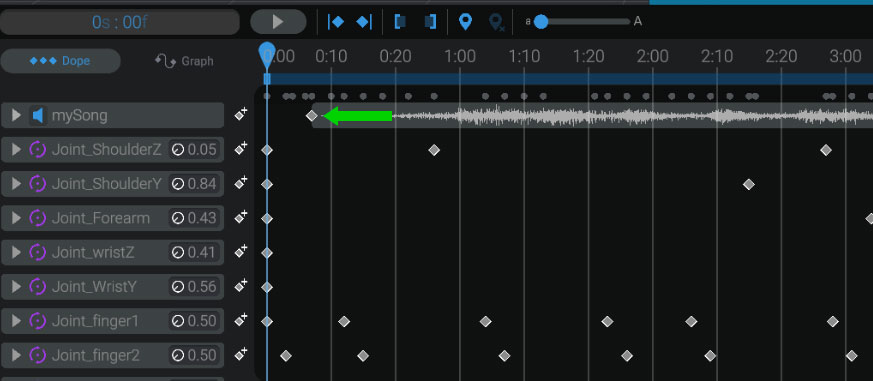
Connect the ESP32 hardware driver to Bottango. The firmware reports that I2S audio is available, which allows Bottango to show the required hardware-audio options.
In the Import menu, enable Play On Hardware for each imported file you want the hardware driver to play.
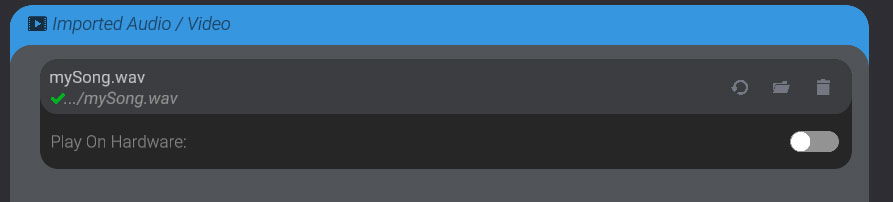
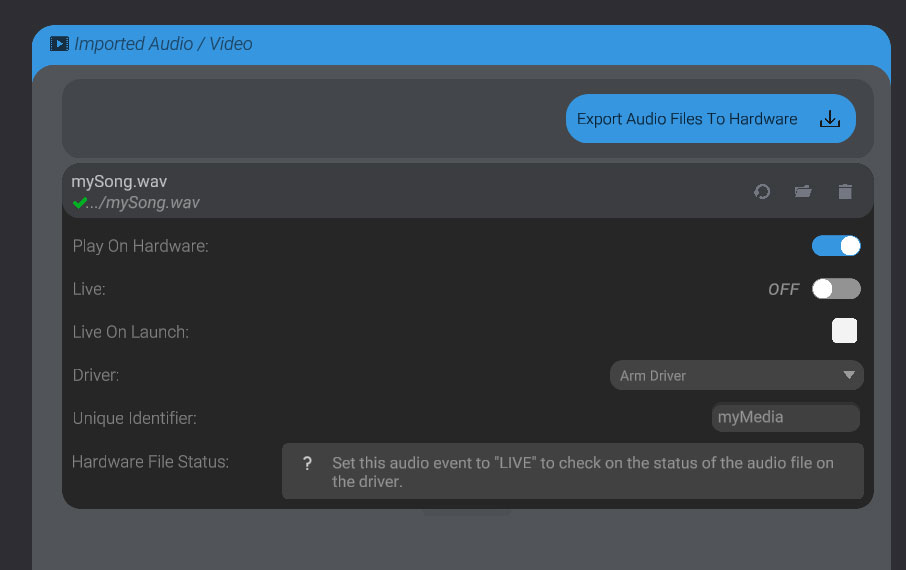
Select the ESP32 hardware driver and give the file a unique identifier. The identifier must be alphanumeric, no more than eight characters long, and unique among the audio files assigned to that driver.
Mount the SD card on your computer. You will need a computer with a compatible card slot or a USB SD card reader.
Click Export Audio Files To Hardware at the top of the Import menu and follow the export steps. Select your ESP32 hardware driver when prompted.
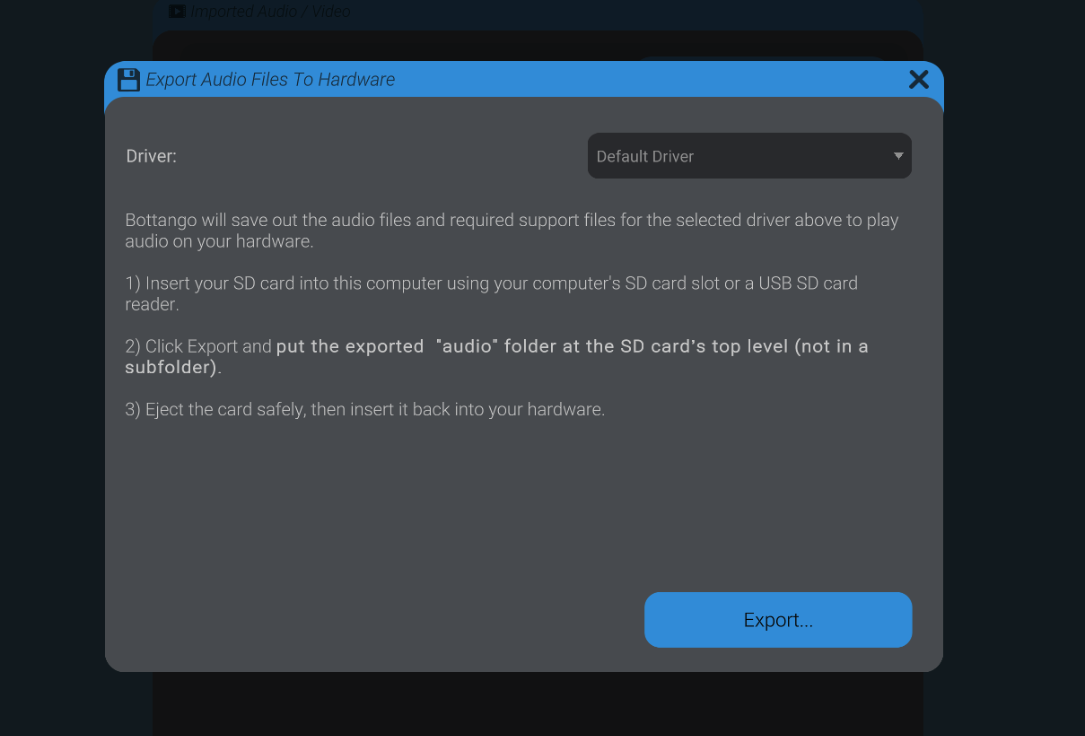
Bottango will generate an audio folder. Place the entire folder at the root of the SD card.
Safely eject the SD card from your computer and insert it into the SD card module connected to the ESP32.
Reconnect the hardware driver, then set each audio file you want to play on the hardware Live.
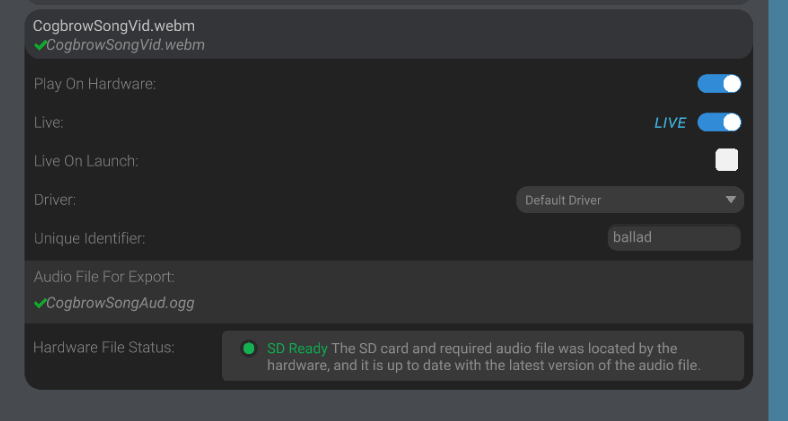
The Bottango desktop app cannot extract an audio track from a video file during export. If you enable Play On Hardware for an imported video, provide a separate .wav or .ogg audio file in the Audio File For Export field.
Open an animation containing an audio keyframe and start playback. You should hear the audio from the DAC output when the animation reaches the keyframe.
If audio does not play, check that:
Live and assigned to the correct hardware driver.audio folder is at the root of the SD card.Once playback works during live control, it will also work with exported animations as long as the audio tracks are included in the export and the required audio files remain on the SD card.