
What animations can you export? Any limitations to be aware of
You can export and playback pretty much any animation you’d like! With a 16gb SD card, you will be very very hard pressed to ever run out of storage space for your animations.
Right now the driver is limited to 32 total exported animations on your Bottango Solar. It is possible to increase that number with some advanced steps, if you need to. Refer to the full Bottango Hardware documentation for more details (Docs coming soon).
One other note, animations will start right away when triggered. It’s recommended to have the end of your animations end and start in a kind of “home” pose. That way, the end of one animation matches the start of another.
What animation plays when?
During export, you can set animations to play as follows:
As a “starting” animation as soon as powered on. As an “idle” animation to play when nothing else is playing. Trigger-able based on pressing one of the buttons on your Bottango control board.
Because the Bottango control board software is open source, it’s also possible to code your own trigger logic. Refer to the full Bottango Hardware documentation for more details (Docs coming soon).
Exporting Animations
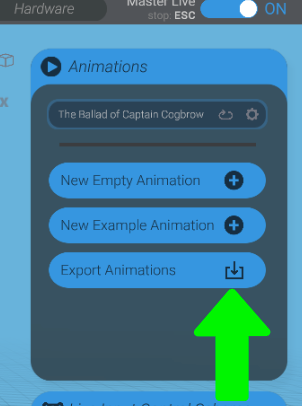
In the “Animation” view of Bottango, press the “Export Animations” button.
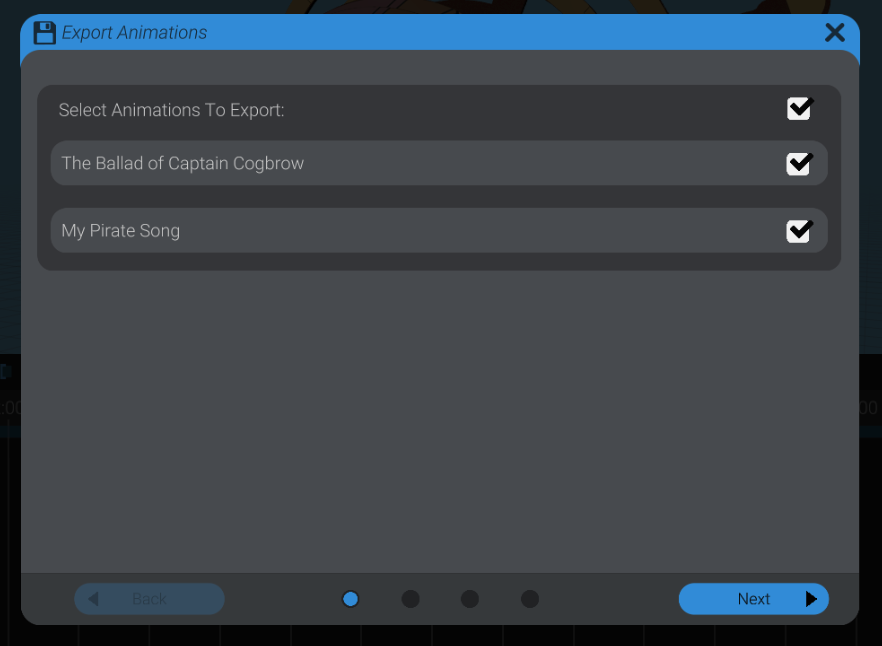
Then select which animations in your project you want to export. In this example, I’m exporting just the demo animation.
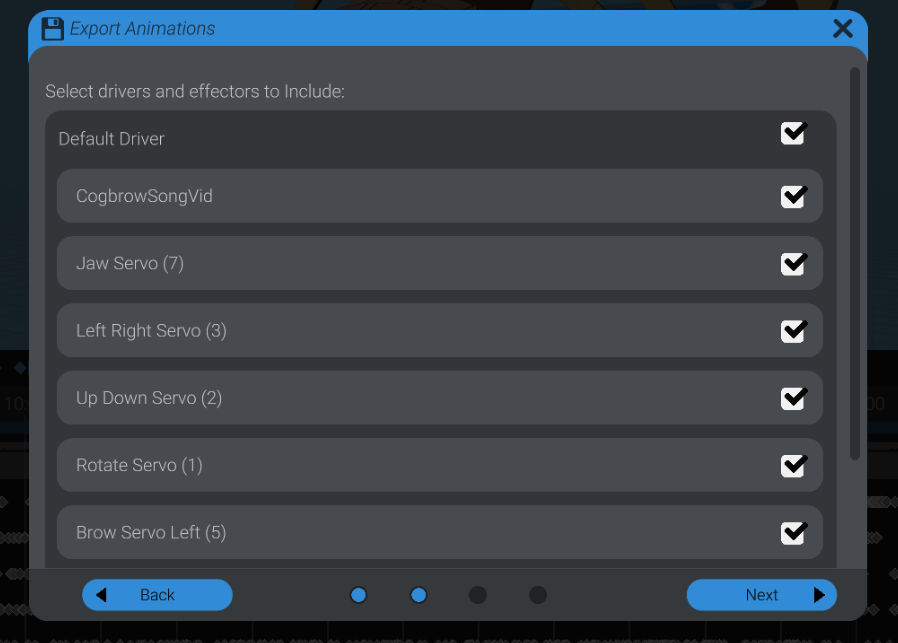
Select which servos and audio files you want to include in the exported animations. Unless you have a reason you want to disable certain audio files or servos, just leave everything on (which is the default).
Animation Triggering Logic
Now you set up the logic for how animations are triggered.
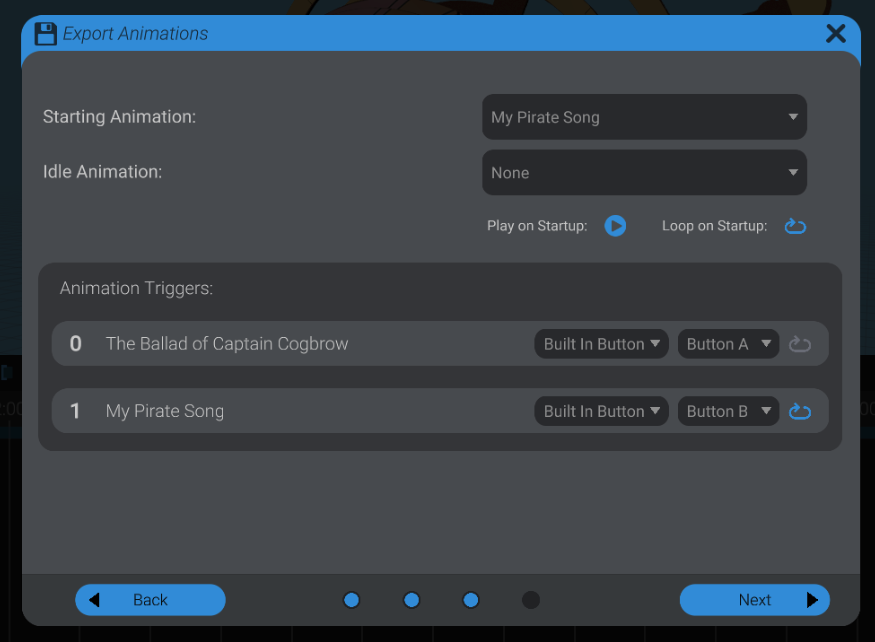
In this example I’ve set up:
- My custom animation “My Pirate Song” will play on startup, and loop.
- The demo song will play when button A on the Bottango Solar board is pressed (not looping)
- My custom animation “My Pirate Song” when button B on the Bottango Solar board is pressed (with looping)
But you can customize however you’d like with the options available when exporting.
Export Animation Files
Just as with exporting audio files, you’ll need to remove the SD card from Bottango Solar, and mount it in your computer using an SD card slot or USB SD card reader.
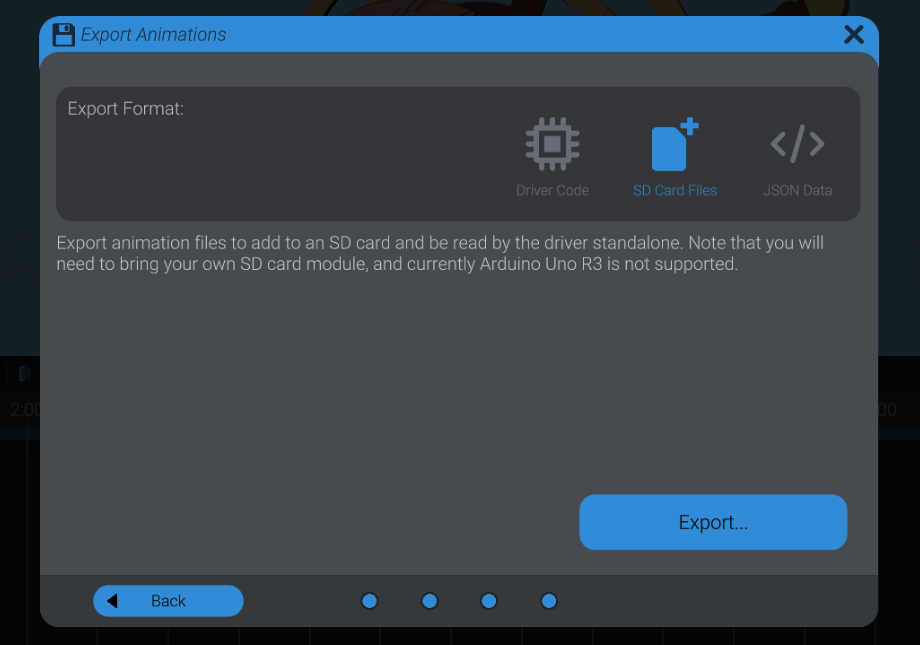
In the final screen of the export process, make sure that “SD Card Files” is selected as the export format, then press the “Export” button. Place the saved “anim” folder at the root of the SD card.
Unmount the SD card from your computer, and put it back in Bottango Solar.
In a future version, Bottango will allow sending the animation files directly to the SD card in your Bottango Solar. For now, mounting the SD card in your computer is required.
As well, Bottango will eventually report the status of the animation files on the SD card, similar to how the status of audio files is reported in the Pro Kit Audio functionality. That functionality is not enabled yet.