
Play Exported Animations
Switch Your Control Board to “Exported Animation” Mode
Section titled “Switch Your Control Board to “Exported Animation” Mode”Head over to the Hardware tab. With your control board connected, in the Status menu, you should see an option to switch between “Live Computer Control” and “Play Exported Animations.”
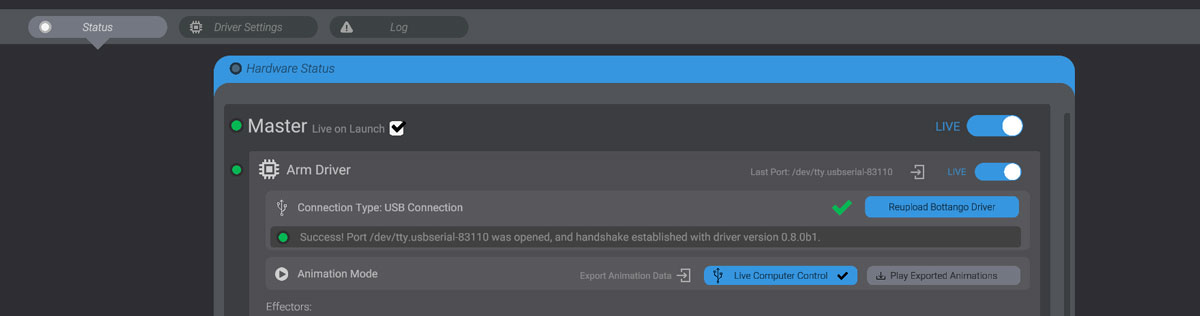
Keep both the USB connection and the power supply plugged into the board for troubleshooting.
Press the “Play Exported Animations” button to switch the hardware over to play the animation files you exported onto the SD card. If you exported the files and put the SD card back in your control board, you should see it switch to “Exported Animation Mode.”
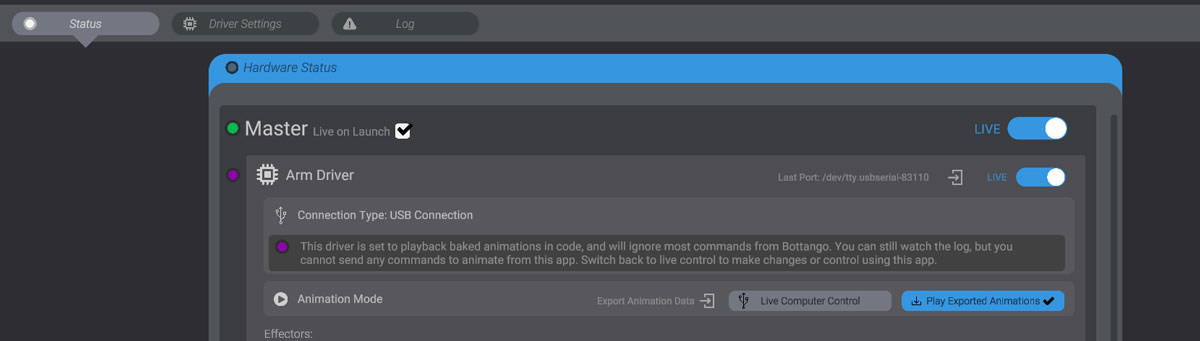
Testing Exported Playback
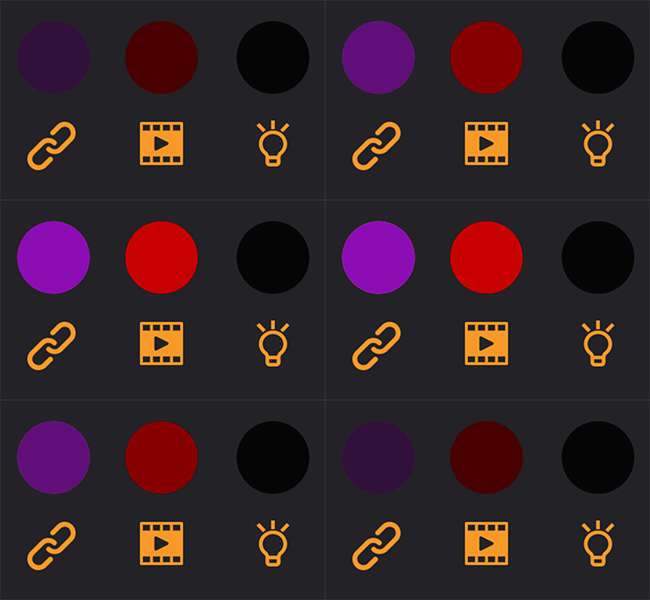
Section titled “Testing Exported Playback”Your control board is now set to play animations off the SD card. The connection status light will glow purple.
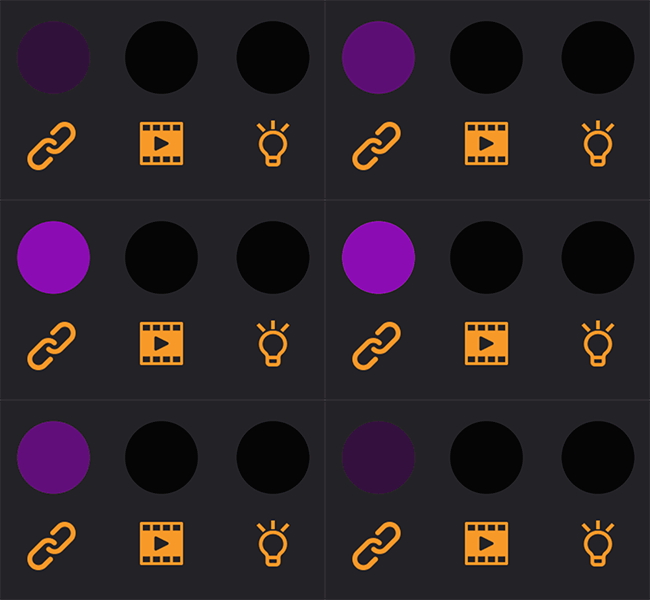
If you set up an animation to play on startup, it should start playing right away. If you set up animation triggers with built-in buttons, you should be able to trigger animations using the button configuration you selected during export.
While playing an animation, the data light will glow purple.
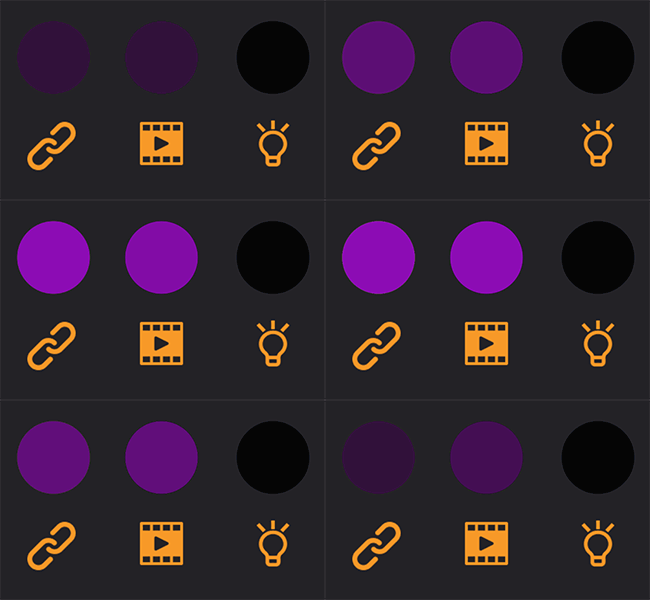
Troubleshooting tips:
- Double-check that the files you exported are in the right place on the SD card. There should be an “anim” folder at the root of the SD card.
- Try exporting again and make sure your triggering settings are what you expect.
- Check the Bottango hardware log, and reach out to support for more help if needed.
If the SD card can’t be found, or required animation files can’t be found on the SD card, the data light will glow red.
Removing the Computer
Section titled “Removing the Computer”You no longer need the computer to serve the animations. However, you will still need to power your control board.
Stop Button
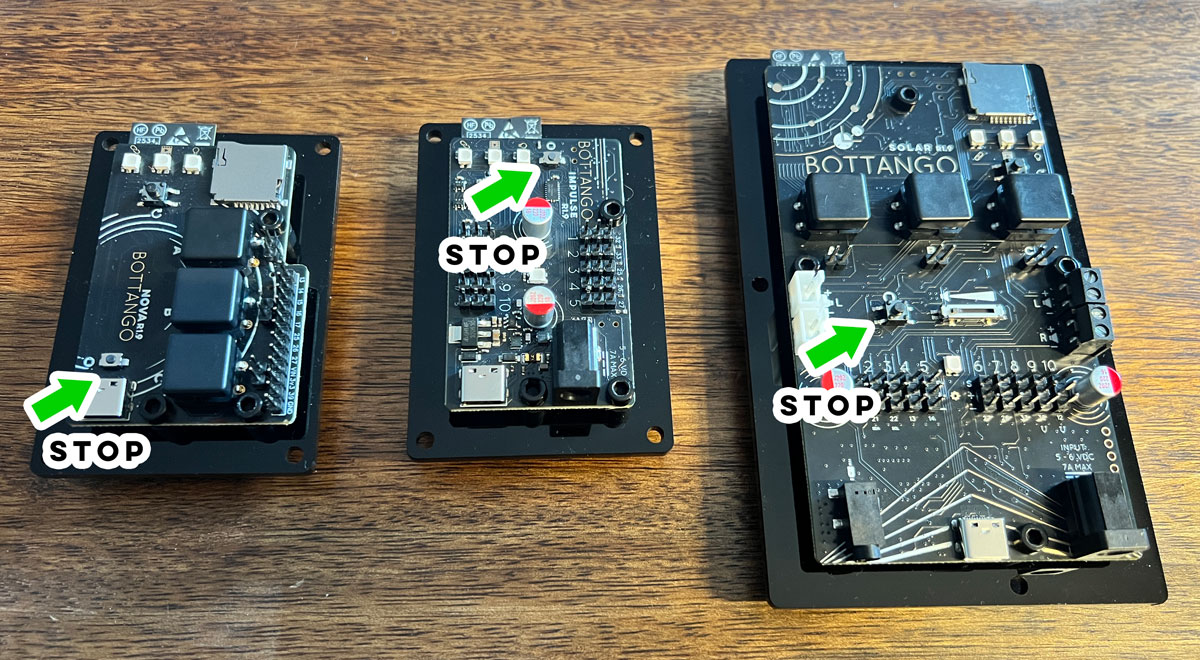
Section titled “Stop Button”All three control boards have a stop button. Pressing the stop button will stop the currently playing animation, regardless of whether the board is connected to a computer or playing exported animations.
Back to Live Control
Section titled “Back to Live Control”To go back to live control, and edit animations or play back animations using the computer, just reconnect your control board to your computer, and then click the “Live Computer Control” button to reverse the process.