
Run Your Show
Now we need to set your show controller to serve animations from its SD card. The process is the same as in the one board only exported animation playback use case.
Set Your Show Controller to “Play Exported Animations”
Section titled “Set Your Show Controller to “Play Exported Animations””Head over to the Hardware tab. With your show control board connected and all peers connected, in the Status menu, switch from “Live Computer Control” to “Play Exported Animations.”
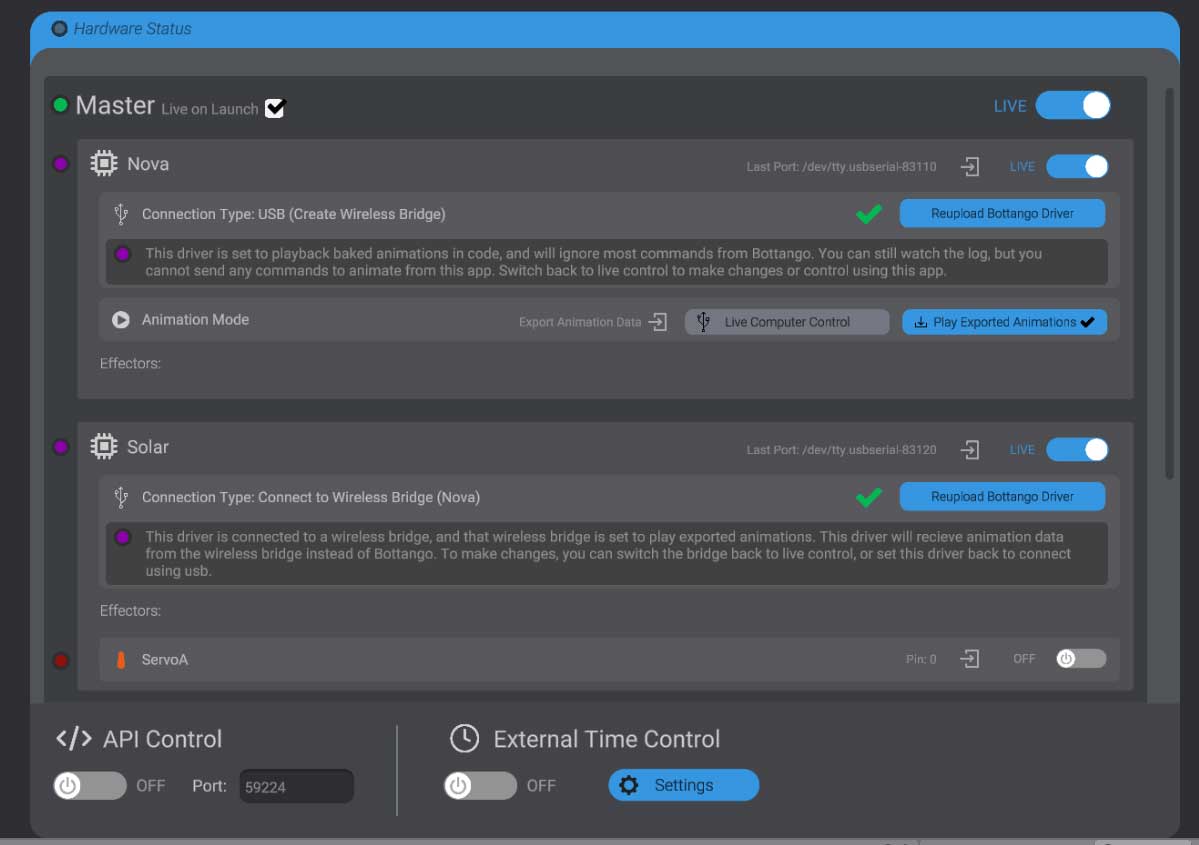
The show controller will now switch to play exported animations to the connected peers.
The Show Controller Runs the Show
Section titled “The Show Controller Runs the Show”You do not switch the peers to play exported animations; they inherit the configuration from the show controller / bridge they connect to. The status light indication of exported or live control will only display on your show controller.
Your animation triggering logic, especially unique animation triggering code, will all remain on the show controller board. The peer devices in fact do not even know that they are getting animations relayed from a computer or read by the show controller from an SD card.
Return to Live Control
Section titled “Return to Live Control”When you set the show controller back to “Live Computer Control” it will go back to relaying animations from the computer instead of reading from stored exported animations. You will need to be in live computer control mode on the show controller to make any configuration changes, including setting peer boards back to connect via USB.